
Outlook updates are essential for security reasons. These updates not only fix vulnerabilities but also enhance performance. Because of such updates only, issues like crashes, sync errors, search failures, and OST corruption bugs have been fixed. But this Outlook update process has always not been as smooth. Sometimes, it creates problems for the users. The update can change the UI. For instance, a “New Mail” or “Search” option can disappear after an update. Interestingly, such updates are meant for fixing bugs. But, sometimes, the user ends up facing new issues like add-ins crashing Outlook, search returning no results, etc. Additionally, such an Outlook update can also lead to PST file corruption. The last one is an extremely sensitive issue. It poses a grave threat to the crucial data saved in the PST data file. The users have the option to employ built-in ScanPST.exe. But this utility is capable of fixing minor errors. It often fails to fix complex update-related corruption issues in the data file (.pst). Experts strongly argue against using built-in utilities in case of complex corruption scenarios. Rather, they advocate employing some specialized Outlook PST repair tool. These advanced tools are built to handle complex corruption scenarios. They don’t disturb the data integrity and ensure complete recovery of the data. For understanding the right approach, follow our guide titled “Outlook PST Corrupt After Upgrade? Complete Repair Guide.”
Why Does PST File Get Corrupted After an Upgrade?
In this part of the guide, we will discuss the factors that can cause PST file corruption after an Outlook update. Check the below guide:
Latest Updates: Any recent update can introduce software bugs or compatibility conflicts. For example, the January 2026 Windows 11 update (KB5074109) may cause issues with your current Outlook version. These bugs can make the application crash or freeze while the PST file is open. This ultimately disrupts the PST structure or header-writing process, leading to corruption.
Compatibility Issues: One of the main causes of PST corruption after Outlook update is compatibility issue. If a user wants to open an older PST version in a newer Outlook build. Similarly, conflicting third-party add-ins can also lead to this issue.
Improper Shutdown: Any sudden termination, like the power failure or forced shutdown of the application, can lead to corruption. This sudden closure disturbs the Outlook writing process. It leads to broken PST header or index, creating logical conflicts that make the database unreadable.
Large PST Files: An oversized PST may be problematic. Even in the event of an Outlook version update, the large data file (.pst) is vulnerable. The update may disturb the file structure, that can cause file corruption.
File Format Issues: File format issues are bound to arise after the update. Its possibility increases by severalfold when Outlook transitions between ANSI (legacy) and Unicode (modern) formats.
Common Symptoms After Upgrade:
- Outlook application struggles or fails to start
- Popping up of error messages related to PST
- The user may experience missing emails, contacts or other mailbox folders
- Slow or unresponsive Outlook
Resolving Post-Upgrade PST Corruption:
After shedding light on the reasons as well as consequences of PST file corruption after an Outlook update, it is the time to explore solutions for this error. In this part of the guide, we will explore 2 manual methods for the same. Additionally, we will also uncover a specialized Outlook PST repair tool. Check the below guide:
Fix 1: Employing ScanPST.exe: It is a built-in utility available to all users. This free functionality runs multiple scans to understand the error. Then it diagnoses the file inconsistencies and fixes them. Follow the below process:
- Exit the Outlook app.
- Then explore functionality on the below location:
| MS Outlook Version: | ScanPST.exe Location |
| 2016/2019/365/2021 | C:\Program Files (x86)\Microsoft Office\root\Office16 |
- After discovering the functionality, the next task is to close other allied applications.
- Shutdown other processes running in the background. Wait for some time.
- After this action, launch the ‘Run’ dialogue. Press Windows + R keys for the same.
- Now write %programfiles%/Microsoft Office/ in the box. Press Enter.
- Choose the targeted PST file.
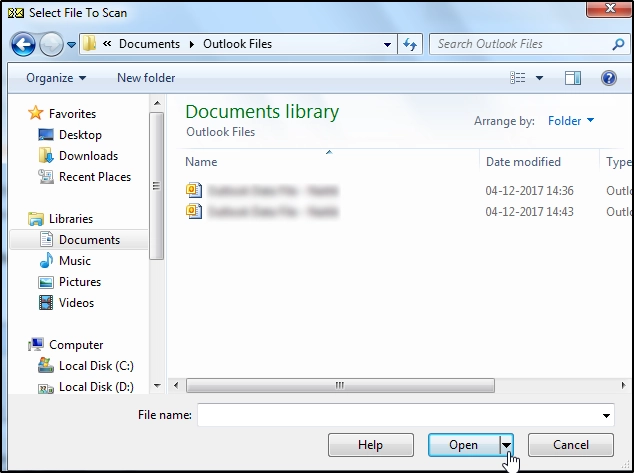
- Start the file scan process.
- This utility will highlight errors and inconsistencies in the Outlook data file (.pst).
- After inspecting errors, resolve them by pressing the ‘Repair’ button.
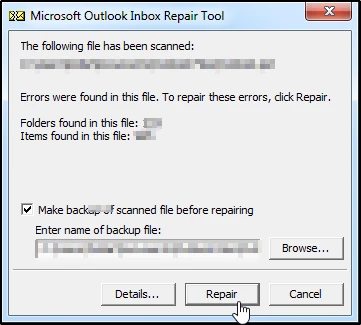
- Check “Make backup….before repairing” option. Provide the path where you need to save the backup file.
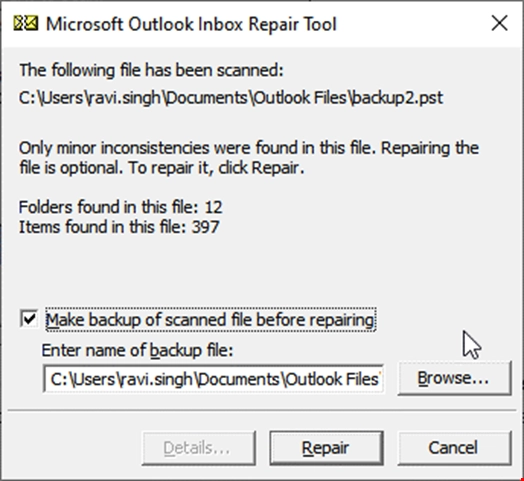
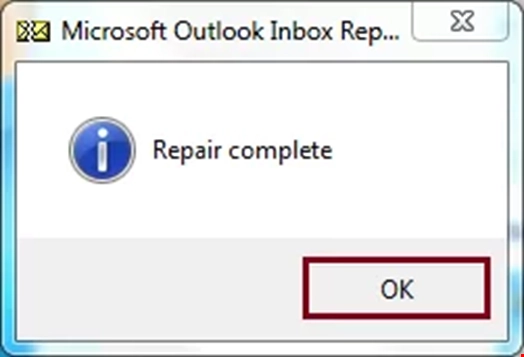
- Once the process is completed, validate the order of email messages and other mailbox folders.
Fix 2: Create a New Outlook Profile: The user can also try to fix the post-update PST corruption issue by creating a fresh Outlook profile. Follow the below steps:
- Exit the Outlook app.
- Close other allied processes as well.
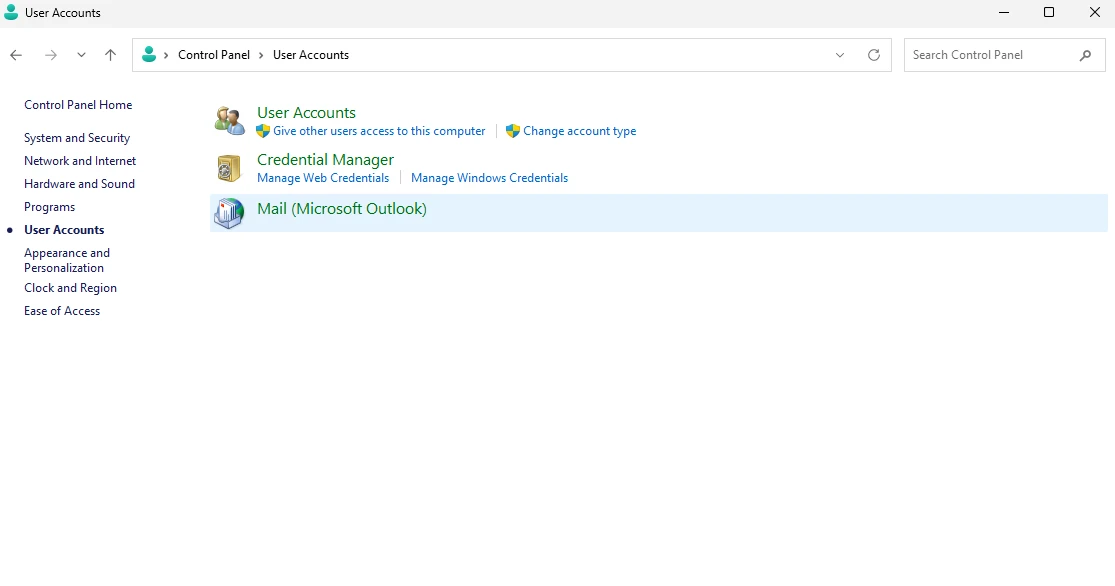
- Browse the Control Panel.
- Go to the User Account.
- Hit on Mail (Microsoft Outlook).
- A Mail Setup box will appear.
- Go to Show profiles.
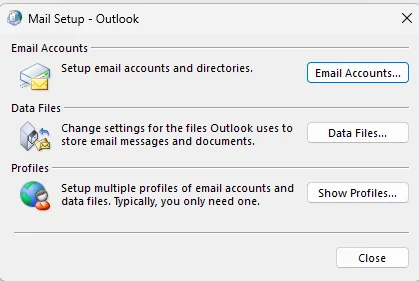
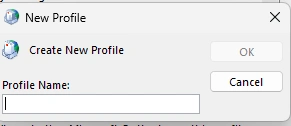
- Press Add profiles.
- Name your profile.
- Then press OK.
- Enter Email and password.
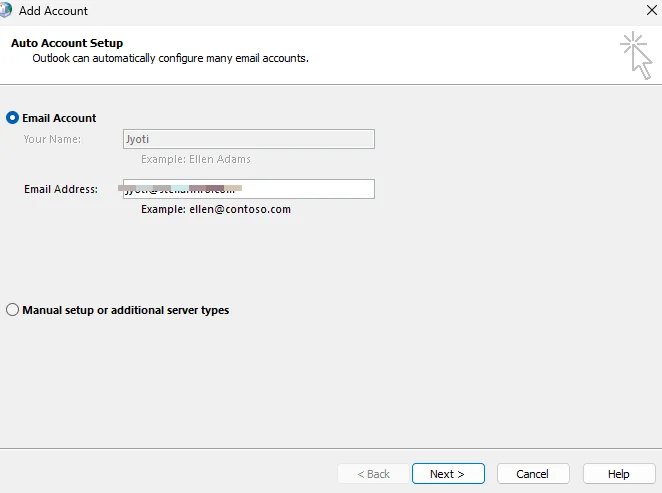
- Then hit on Next.
- After account configuration, press Finish.
- Return to the show profile.
- Now select new profile.
- Choose option reading “Always….. profile.”
- Then press Apply.
Why Manual Methods Fail?
There is a high possibility that the above methods may fail to fix the post-update corruption in the Outlook data file (.pst). This is so because these methods are ideal for solving minor header and structural issues. When these functionalities encounter situations involving complex corruption, they may struggle or even crash while attempting to fix the issues. So, what is the remedy available to the user to move out of this quagmire? The answer to this query is an Outlook PST Repair Tool. Such software utilizes advanced algorithms. Tools like Stellar Repair for Outlook are developed with advanced scanning algorithms to rebuild file headers and repair structural damage. These tools are smart enough to recover data from an oversized PST. They can recover data from heavily damaged PST. Additionally, they extract and salvage data without compromising original file integrity.
Why Stellar Repair for Outlook Succeeds Where Others Fail?
–Ability to repair major structural damage as well as the header corruption
— Capability to handle oversized PST files efficiently
— Ability to perform deep scans to reconstruct damaged file structures
— Equipped with advanced modes for better accuracy
— Capability to recover intentionally or mistakenly deleted email messages, attachments, and other folders
Conclusion:
In the above guide titled “Outlook PST Corrupt After Upgrade? Complete Repair Guide,” we have learned that the PST corruption after an Outlook upgrade is common. It happens in many cases. We have explored reasons as well as consequences of such corruption. If the corruption level is low to moderate, then it can be fixed by the built-in ScanPST.exe. But this functionality has its limits. It struggles in fixing complex issues like repairing an oversized or severely corrupted PST. It may also fail in fixing upgrade-related corruption. Experts strongly advocate utilizing any professional Outlook PST repair tool. They recommend tools like Stellar Repair for Outlook. Based on advanced algorithms, such tools promise deeper scanning as well as accurate recovery. It also preserves the integrity of the data file. Experts also love Stellar’s ability to recover all mailbox items, including emails, attachments, contacts, etc.